
About the Compress PDF tool
This free tool lets you compress PDF files so they fit an upload limit, attach to an email, or simply stop taking up space. Pick a compression level, click once, and download the smaller file. The whole thing runs in your browser, so the document never leaves your device.
Scanned PDFs are the usual culprit. A ten-page scan can easily be 15 MB because every page is stored as a full-resolution photograph. Compression is what turns that into something a government portal will actually accept.
How to compress a PDF
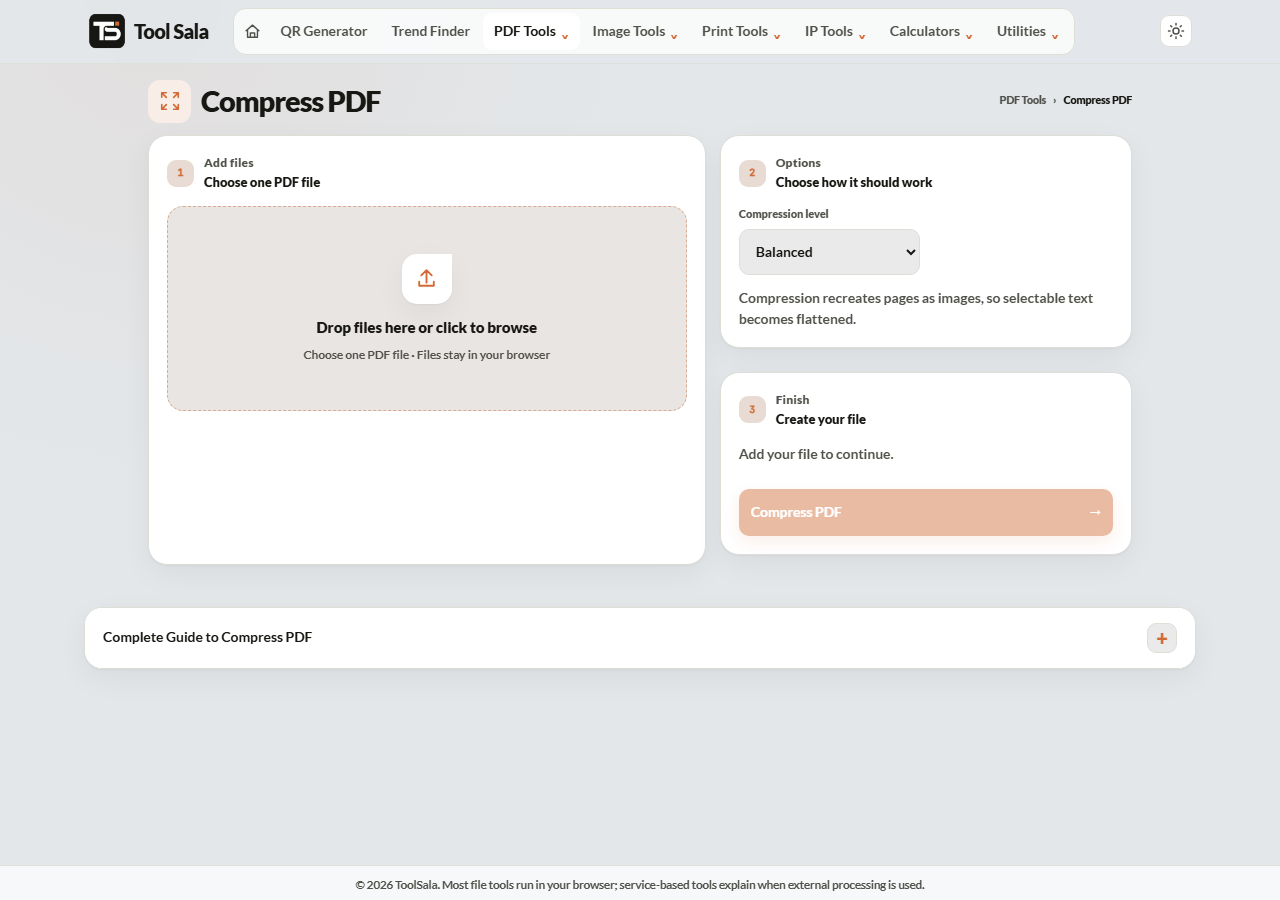
- Drop your PDF onto the upload area, or click to browse.
- Choose a Compression level: Small file, Balanced or Better quality.
- Click Compress PDF.
- Download the result and open it to check the pages are still readable.
Which compression level to pick
- Small file — the most aggressive. Use it when a portal demands under 2 MB and you only need the text to be readable on screen.
- Balanced — the sensible default. Noticeably smaller, still clean enough to print.
- Better quality — a modest reduction that keeps images sharp. Use it for anything with photographs, certificates or fine print.
Start with Balanced. Only drop to Small file if the size is still above the limit, and always open the result before submitting it anywhere official.
Why some PDFs barely shrink
How much you save depends entirely on what is inside the file:
- Scanned documents — huge savings, often 70–90%, because the images carry all the weight.
- Photo-heavy reports and brochures — good savings.
- Plain text PDFs from Word — very little. Text is already tiny; there is nothing to squeeze.
If a text-only PDF will not shrink, that is not a fault — there was simply no spare weight in it to begin with.
Hitting a specific size limit
Portals often demand under 1 MB, 2 MB or 5 MB. There is no setting that hits an exact number, because it depends on the document. Work down the levels: try Balanced, check the size, then Small file if needed. Still too big? Split the PDF and submit the relevant pages only.
Compress PDF FAQs
Is this compress PDF tool free?
Yes. No signup, no watermark on the output, and no daily limit.
Is my PDF uploaded anywhere?
No. Compression runs inside your browser on your own device. The file is never sent to a server, which matters for bank statements and ID documents.
How much smaller will my PDF get?
Scanned PDFs commonly drop 70–90%. Text-only PDFs may barely change. The mix of images and text decides it.
Will the text still be selectable?
Yes. Text stays as text; compression targets the images. A scanned page was already a picture, so it stays one.
Can I compress a password-protected PDF?
No. Remove the password in a PDF reader first, then compress.
My PDF is still too large. What now?
Use the strongest level, and if it is still over the limit, split the PDF and submit only the pages that are needed.
Related online tools
- Split PDF — extract only the pages you need.
- Merge PDF — combine files, then compress the result.
- Image Compressor — shrink photos before making them into a PDF.
- PDF to JPG — convert pages to images instead.
- All PDF tools — the full list.