
About the PDF to JPG converter
This free PDF to JPG converter turns every page of a PDF into an image. Upload the file, choose the image quality, and download the pages as JPGs. The conversion runs in your browser, so the document never leaves your device.
People usually need this when something will only accept an image: a WhatsApp message, an Instagram post, a slide, or a form that asks for a JPG upload rather than a PDF.
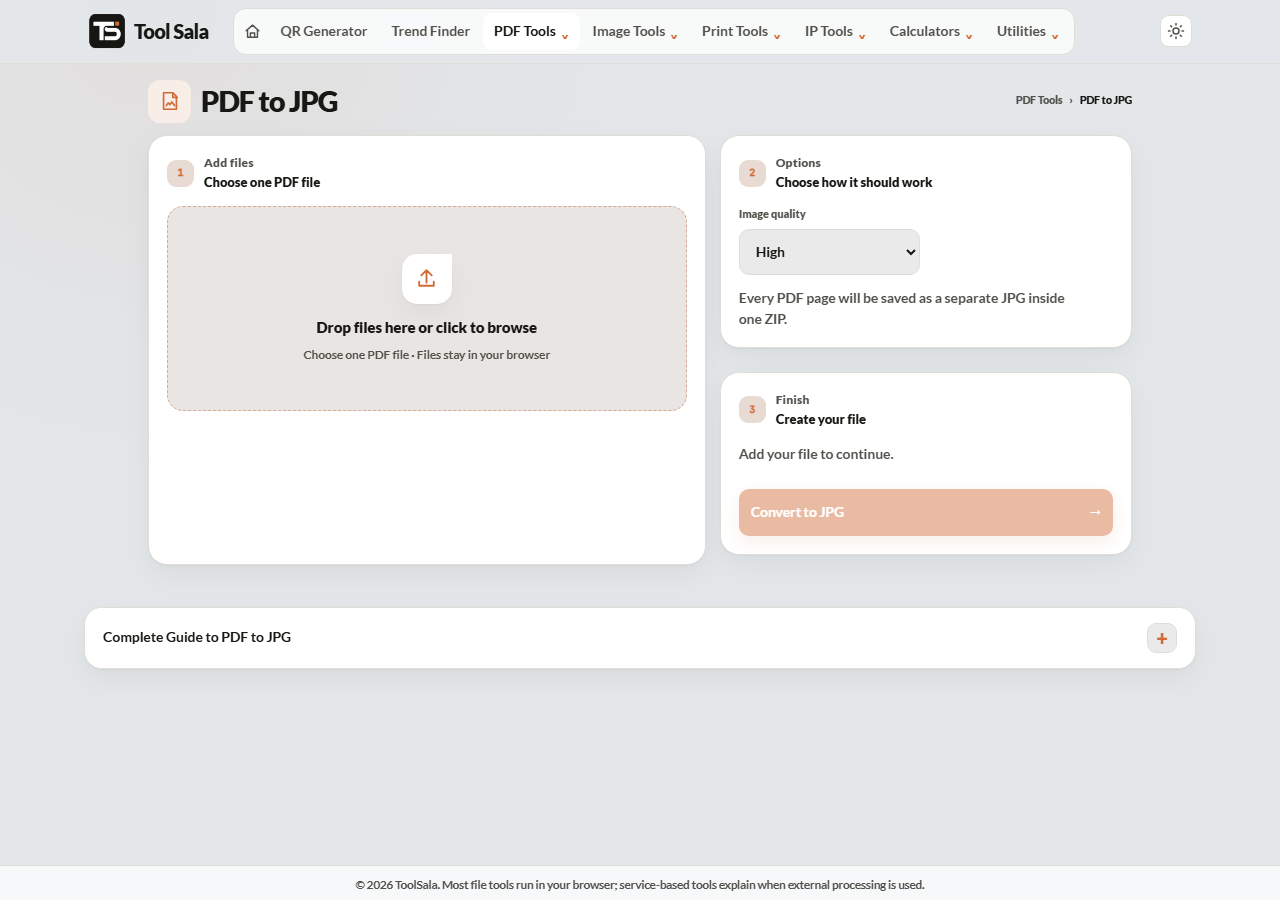
How to convert PDF to JPG
- Drop your PDF onto the upload area, or click to browse.
- Choose the Image quality: Standard, High or Very high.
- Click Convert to JPG.
- Download the images.
Which quality setting to use
- Standard — small files, fine for sharing on WhatsApp or viewing on a phone.
- High — the sensible default. Text stays crisp on a laptop screen.
- Very high — for printing, or when the page has small print you need to stay readable. Files get noticeably bigger.
If the page is mostly text, go High or Very high — text is the first thing that turns mushy at low quality.
What you lose by converting
A JPG is a picture of the page, and that has consequences worth knowing before you convert:
- Text stops being text. Nobody can select, copy or search it.
- Links stop working. Clickable links become flat pixels.
- Each page becomes a separate file. A 20-page PDF gives 20 images.
If you only need to share or view the document, keep the PDF. Convert to JPG when something specifically requires an image.
PDF to JPG FAQs
Is this PDF to JPG converter free?
Yes. No signup, no watermark, and no limit on conversions.
Is my PDF uploaded to a server?
No. Conversion happens inside your browser on your own device.
Will every page become a separate image?
Yes. Each PDF page becomes its own JPG. To convert just one page, split the PDF first.
Can I get PNG instead of JPG?
Convert to JPG here, then use the JPG to PNG converter. PNG is worth it only if you need a lossless copy.
Why does the text look blurry?
The quality setting was too low for that page. Convert again at Very high.
Can I convert the images back into a PDF?
Yes, with Images to PDF — but the text will stay as pictures, not selectable text.
Related online tools
- Split PDF — pick out one page before converting.
- Images to PDF — turn images back into a PDF.
- Image Compressor — shrink the JPGs afterwards.
- PDF to Word — if you actually need editable text.
- All PDF tools — the full list.