
About the Image Compressor
This free image compressor reduces the file size of JPG, PNG, WebP and GIF images without sending them anywhere. Everything happens inside your browser, so the photos never leave your device — no upload wait, no server queue, and no account.
Most photos from a phone camera are 3–8 MB. After compression the same picture is usually 200–600 KB and looks identical on screen. That is the difference between a form that rejects your upload and one that accepts it.
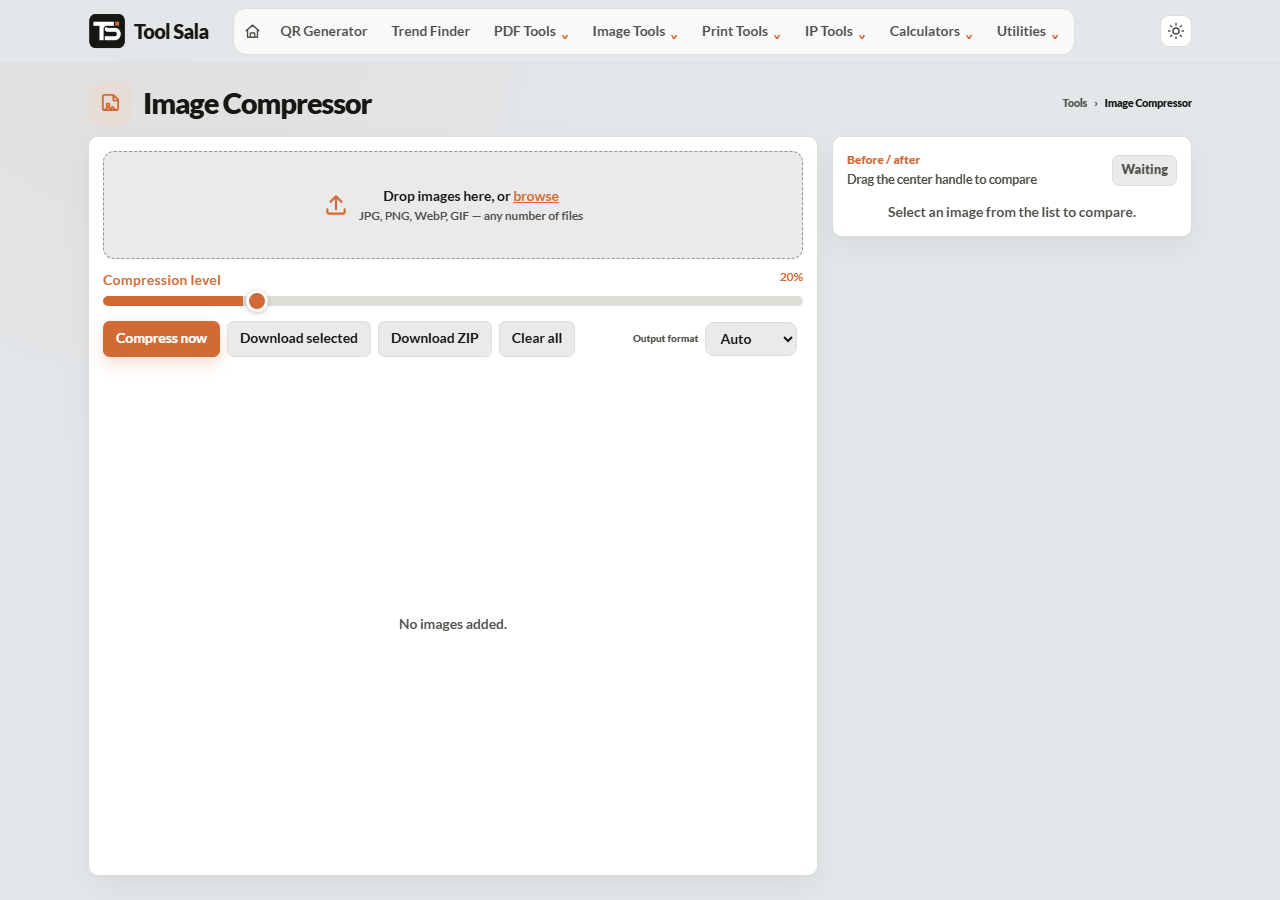
How to compress an image online
Whether you need to reduce image size in KB for a job application form, or compress image online for a faster website, the steps below are the same.
- Drop your images onto the upload box, or click browse to pick them. You can add as many files as you like at once.
- Move the Compression level slider. Lower numbers mean a smaller file; higher numbers keep more detail.
- Choose an Output format: Auto, WebP, JPEG or PNG.
- Click Compress now and wait a moment.
- Drag the centre handle in the Before / after panel to check the quality against the original.
- Use Download selected for one image, or Download ZIP to get everything in a single file.
Which output format should you pick?
- Auto — keeps the original format. Safest choice when you are not sure.
- WebP — the smallest files by a wide margin. Best for websites. Every modern browser supports it, but some older software and a few government portals still do not.
- JPEG — the safe universal choice for photographs. Accepted everywhere.
- PNG — use only when you need a transparent background or sharp text and lines. PNG files stay much larger than JPEG.
Rule of thumb: JPEG for photos, PNG for logos and screenshots, WebP for your website.
Getting a specific file size
Many application forms demand something exact — under 200 KB, under 100 KB, sometimes under 50 KB. There is no single slider value that hits those numbers, because it depends on the photo. Do this instead:
- Start at around 40 on the slider and compress.
- Check the resulting size in the file list.
- Still too big? Lower the slider and compress again. Too blurry? Raise it.
Two or three attempts will land you in the right range. Always use the before/after slider before you submit anything official — a passport or ID photo that has gone soft may be rejected.
Compressing many images at once
Add the whole batch, set the level once, and click Compress now. Every image is processed with the same settings and Download ZIP gives you all of them together. This is the fastest route for a product catalogue, a holiday album or a folder of scanned documents.
Very large batches use your device’s memory, so on an older phone work in groups of ten or twenty rather than a hundred at once.
Image Compressor FAQs
Is this image compressor free?
Yes. No account, no signup, no watermark, and no limit on how many images you compress or download.
Are my photos uploaded to a server?
No. The compression runs inside your browser using your own device. Your images are never sent anywhere, which is why it works even on a slow connection.
How much smaller will my image get?
Typically 60–90% smaller for a phone photo, depending on the level you choose and how detailed the picture is. Photos with plain backgrounds compress the most; busy, textured images compress the least.
Will compressing reduce the image quality?
JPEG and WebP compression is lossy, so some detail is always lost. At moderate levels the difference is invisible on a screen. Use the before/after slider to judge it yourself before downloading.
Can I compress a PNG without losing transparency?
Yes — keep the output format as PNG or Auto. If you switch to JPEG the transparent areas turn white, because JPEG does not support transparency.
How do I get an image under 100 KB?
Lower the compression slider and compress again, checking the size each time. If the photo is very large, resize it first with the photo editor — a smaller picture compresses far better than a big one.
Can I compress several images together?
Yes. Add them all, compress once, and use Download ZIP to save the whole set in one file.
Related online tools
- Photo Editor — crop and resize before compressing for the smallest possible file.
- PNG to JPG Converter — convert first, then compress.
- PNG to WebP Converter — the smallest format for websites.
- Image Background Remover — remove the background, then compress.
- Images to PDF — turn the compressed photos into one PDF.
- All image tools — the full list.