
About the Photo Editor
This free online photo editor handles the edits people actually need — crop, straighten, rotate, flip, colour adjustment and a watermark — without installing anything. Everything runs in your browser, so your photos are never uploaded.
It covers the gap between a phone’s basic editor and full desktop software: enough control to prepare a photo properly, simple enough to finish in a minute.
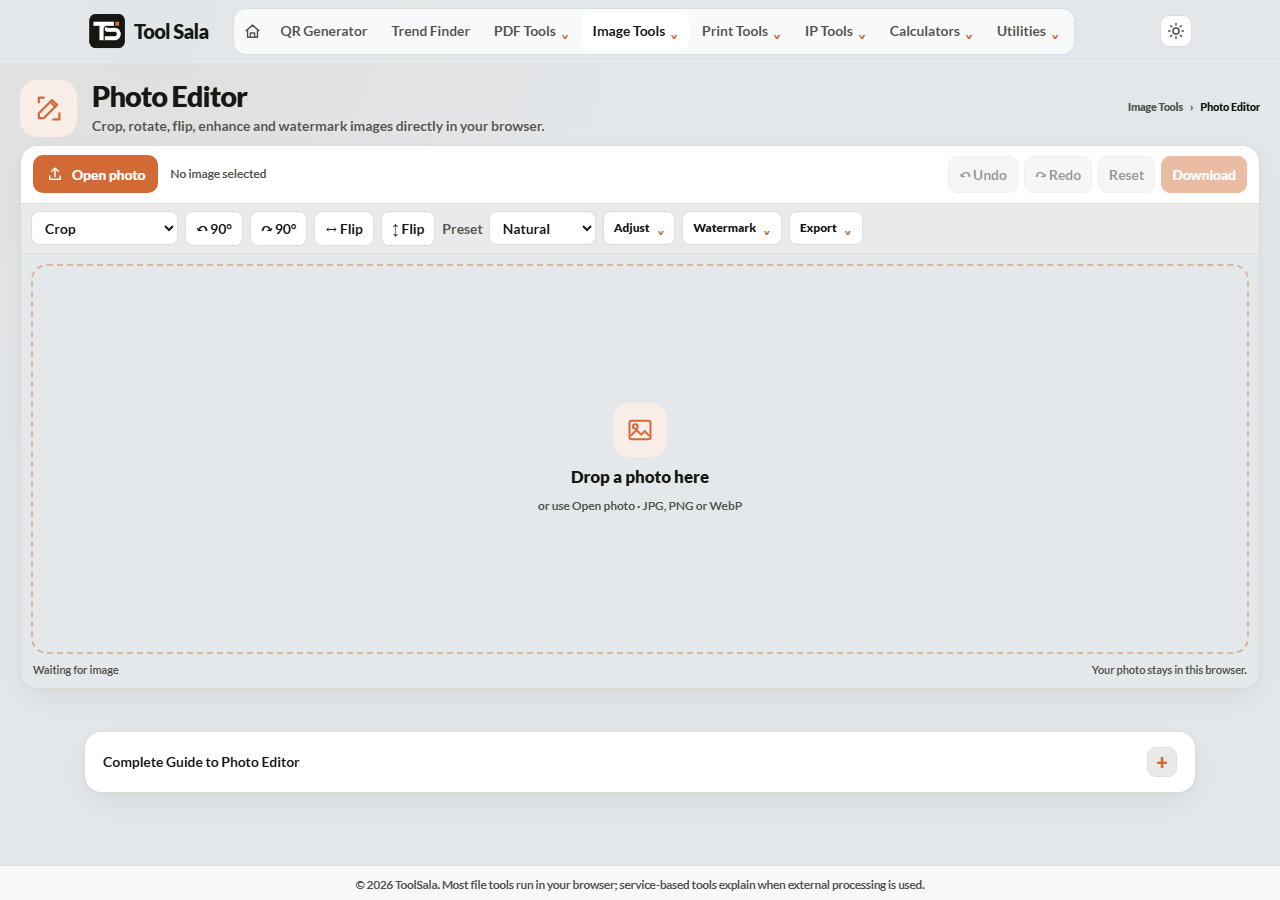
How to edit a photo
- Drop a JPG, PNG or WebP image onto the editor.
- Pick a crop ratio, drag the frame, then click Apply crop.
- Use ↶ 90°, ↷ 90° or the flip buttons to fix orientation.
- Try a preset, or adjust the sliders yourself.
- Add a watermark if you need one.
- Choose PNG, JPG or WebP, set the quality, and Download.
Crop ratios
- Free crop — any shape you drag.
- Square 1:1 — Instagram posts, profile pictures.
- Portrait 4:5 — the tallest crop Instagram allows in feed.
- Wide 16:9 — YouTube thumbnails, presentation slides, website banners.
- Landscape 4:3 and Photo 3:2 — standard camera shapes, good for printing.
- Portrait 3:4 — vertical shots for documents and profiles.
Presets and manual adjustment
Six presets give you a starting point: Natural, Vivid, Mono, Warm, Cool and Soft. Apply one, then fine-tune with the sliders — brightness, contrast, saturation, hue, grayscale, sepia and blur, plus rotation for straightening a crooked horizon.
A practical order: crop first, straighten second, then colour. Adjusting colour before cropping means you judge it on parts of the image you are about to throw away. Undo and Redo are there if you go too far, and Reset returns to the original.
Watermarking
Add your name or brand, choose the position — bottom right, bottom left, top right, top left or centre — and set the size and opacity. Bottom right at low opacity is the usual choice: visible enough to claim the image, subtle enough not to spoil it.
Photo Editor FAQs
Is this photo editor free?
Yes. No account, no signup, and no watermark unless you add one yourself.
Are my photos uploaded to a server?
No. All editing happens inside your browser on your own device.
Which format should I download?
JPG for photographs you will share, PNG when you need transparency or perfectly sharp text, WebP for a website.
Can I undo a mistake?
Yes. Use Undo and Redo for individual steps, or Reset to go back to the original image.
Does cropping reduce the quality?
Cropping removes pixels, so the remaining image is smaller in dimensions. It is not blurred — but crop too tightly and there may not be enough pixels left for printing.
Can I edit several photos at once?
The editor works on one image at a time. For batch work like compressing or converting many files, use the image compressor.
Related online tools
- Background Remover — cut out the background first.
- Image Compressor — shrink the finished image.
- Passport Photo Maker — for official photo sizes.
- PNG to JPG — change format afterwards.
- All image tools — the full list.