
About the Website Screenshot tool
This free website screenshot tool captures a full-page image of any public website — the whole page, not just the part that fits on screen. Pick a device width, choose PNG or JPG, and download the capture.
Scrolling and stitching screenshots by hand is tedious and never lines up. This takes the whole page in one go, at whatever width you need.
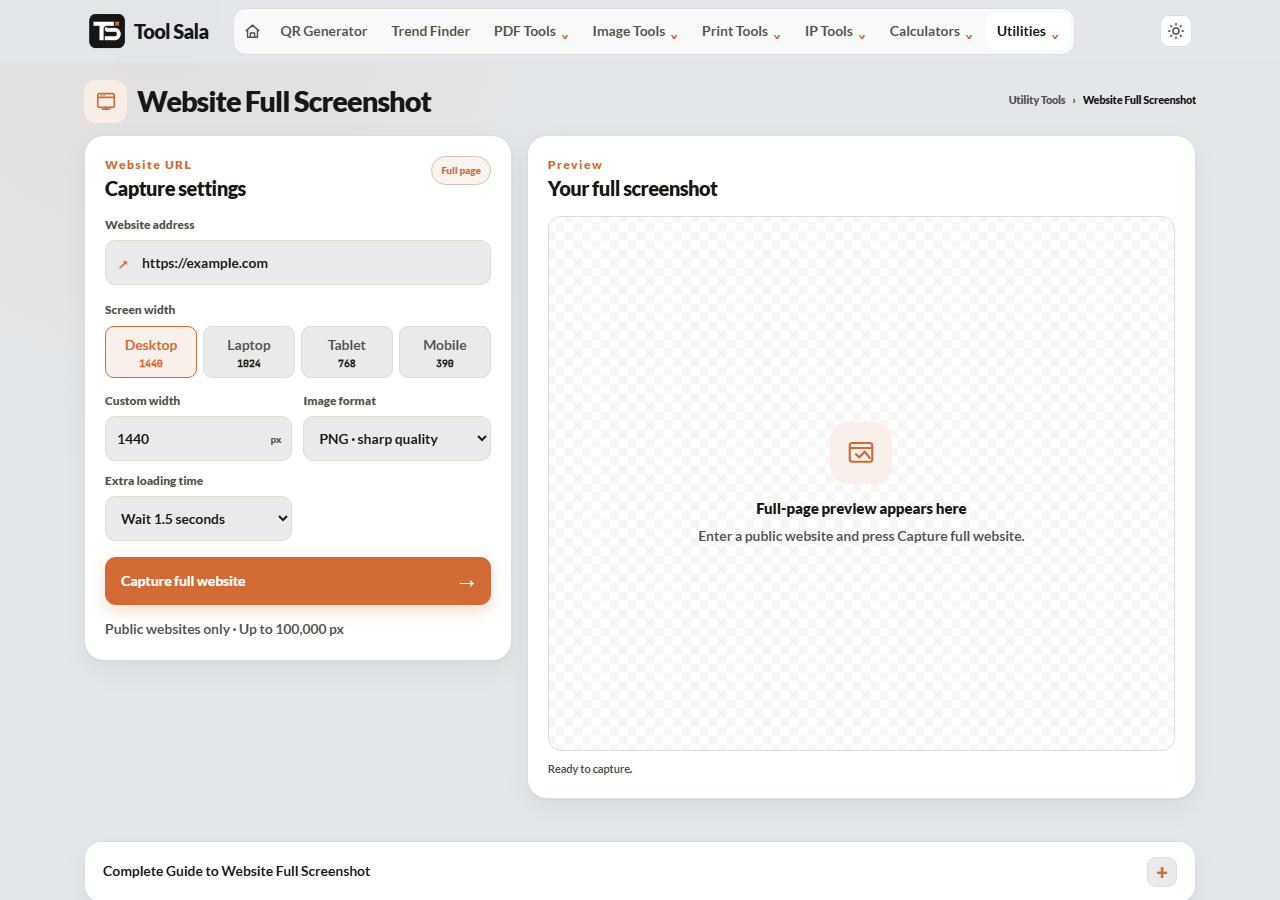
How to capture a website
- Enter the website address.
- Choose a device width: Desktop 1440, Laptop 1024, Tablet 768 or Mobile 390.
- Choose the format — PNG for sharp quality, JPG for a smaller file.
- Set a delay if the page loads content slowly: Normal, or wait 1.5, 3 or 5 seconds.
- Click Capture full website and download the image.
Choosing the right width
- Desktop 1440 — what most laptop and desktop visitors see. Use this for a general record.
- Laptop 1024 — smaller laptops and the point where many layouts switch.
- Tablet 768 — the usual tablet breakpoint, and where responsive layouts most often break.
- Mobile 390 — a modern phone. Since most traffic is mobile, this is the one that matters most.
Capturing the same page at 1440 and 390 side by side is the fastest way to spot a responsive problem — text overflowing, buttons overlapping, a menu that disappears.
When to use the delay
Many sites load images and sections as you scroll, or run an animation on arrival. Capture immediately and you get half-loaded placeholders. If your screenshot has blank gaps where images should be, try Wait 3 seconds and capture again.
What it can and cannot capture
- Public pages — yes, any page a visitor can open.
- Pages behind a login — no. The tool visits as an anonymous visitor, so it sees what a logged-out user sees.
- Cookie banners — these appear in the capture, because that is genuinely what a first-time visitor sees.
Website Screenshot FAQs
Is this screenshot tool free?
Yes. No signup, and no watermark on the image.
Does it capture the whole page?
Yes — the entire page from top to bottom, not just the visible area.
Can it capture a page that needs a login?
No. It visits as an anonymous visitor, so anything behind a login is out of reach.
PNG or JPG?
PNG for sharp text and a faithful record. JPG when the file needs to be small and a little softness is acceptable.
Why are parts of my screenshot blank?
The page was still loading. Set a delay of 3 or 5 seconds and try again.
Can I screenshot how my site looks on a phone?
Yes. Choose Mobile 390 for a realistic phone-width capture.
Is the screenshot processed on a server?
Yes — this tool has to visit the website for you, so unlike most tools here it uses an outside service. Only the public URL you enter is sent.
Related online tools
- Screen Resolution Checker — check your own display.
- Image Compressor — shrink a large capture.
- SEO Content Analyzer — check the page’s headings and content.
- Domain Lookup — WHOIS and DNS for the same site.
- All utility tools — the full list.