
About the Split PDF tool
This free tool lets you split PDF files and keep only the pages you need. Type the page numbers, click once, and download the extracted pages as a new PDF. The original file is untouched and nothing is uploaded — the split happens inside your browser.
Most people reach for this when a form asks for “page 3 of your bank statement” or “only the address page of your passport”. Sending the whole document when one page was requested is both slower and a needless privacy risk.
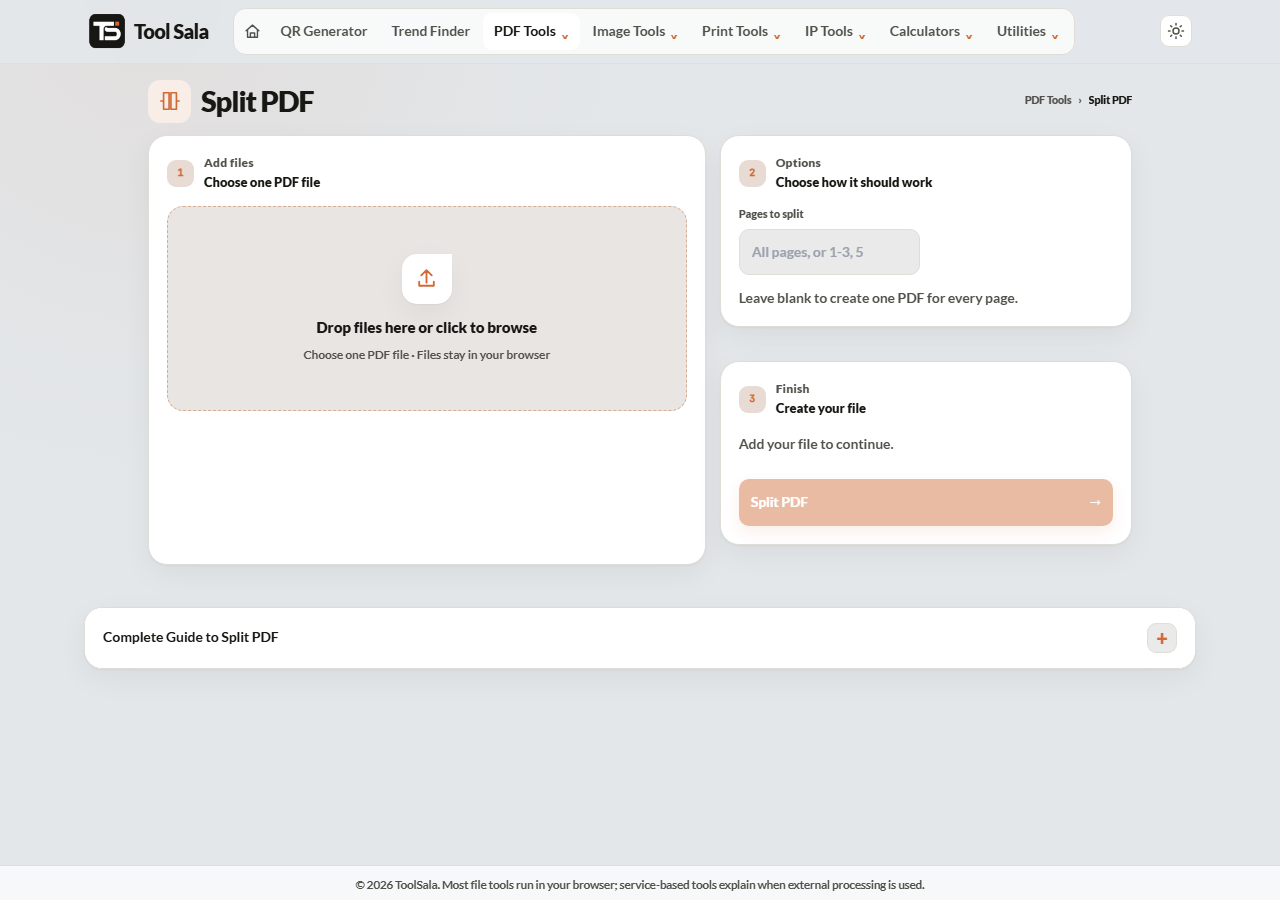
How to split a PDF
- Drop your PDF onto the upload area, or click to browse.
- In Pages to split, type the pages you want to keep.
- Click Split PDF.
- Download the new file containing only those pages.
How to write the page numbers
- A single page —
5 - A range —
2-7keeps pages 2 to 7 inclusive. - Several pages —
1, 4, 9 - Mixed —
1, 3-5, 12
Page numbers are the PDF’s own positions, counting from 1. They may not match the numbers printed on the page — a report with a cover and a contents page often has printed “page 1” sitting at PDF position 3. Scroll to the page and check the viewer’s page counter before typing.
Common uses
- Pulling one statement page out of a full year’s file.
- Removing blank pages that a scanner added.
- Sharing one chapter of a long document instead of the whole thing.
- Extracting a signed page to send back.
- Cutting a large PDF down so it fits an upload limit.
Split PDF FAQs
Is this split PDF tool free?
Yes. No account, no signup, no watermark, and no limit on how many times you use it.
Is my PDF uploaded to a server?
No. The split runs in your browser on your own device, which is why it is safe for bank statements, ID documents and contracts.
Does splitting change the original file?
No. The original stays exactly as it was. You get a new PDF containing the pages you chose.
Can I extract pages that are not next to each other?
Yes. Enter them separated by commas, like 1, 4, 9, or mix ranges and single pages: 1, 3-5, 12.
Why are the wrong pages coming out?
The printed page numbers usually differ from the PDF’s own page positions. Check the page counter in your PDF viewer and use those numbers instead.
Will the extracted pages lose quality?
No. Pages are copied across as they are — text stays selectable and images keep their resolution.
Can I split a password-protected PDF?
No. Remove the password in a PDF reader first, then split.
Related online tools
- Merge PDF — join the extracted pages with another document.
- Compress PDF — shrink the result if it is still too large.
- Rotate PDF — fix sideways pages before or after splitting.
- PDF to JPG — turn the extracted pages into images.
- All PDF tools — the full list.