
About the WebP to PNG converter
This free WebP to PNG converter turns a WebP image into a PNG while keeping the transparent background. Upload the file, download the PNG. The conversion runs in your browser, so nothing is uploaded.
This is the conversion to choose when the image is a logo, an icon or a cut-out product shot. Converting such an image to JPG would fill the transparency with white and ruin it; PNG keeps it intact.
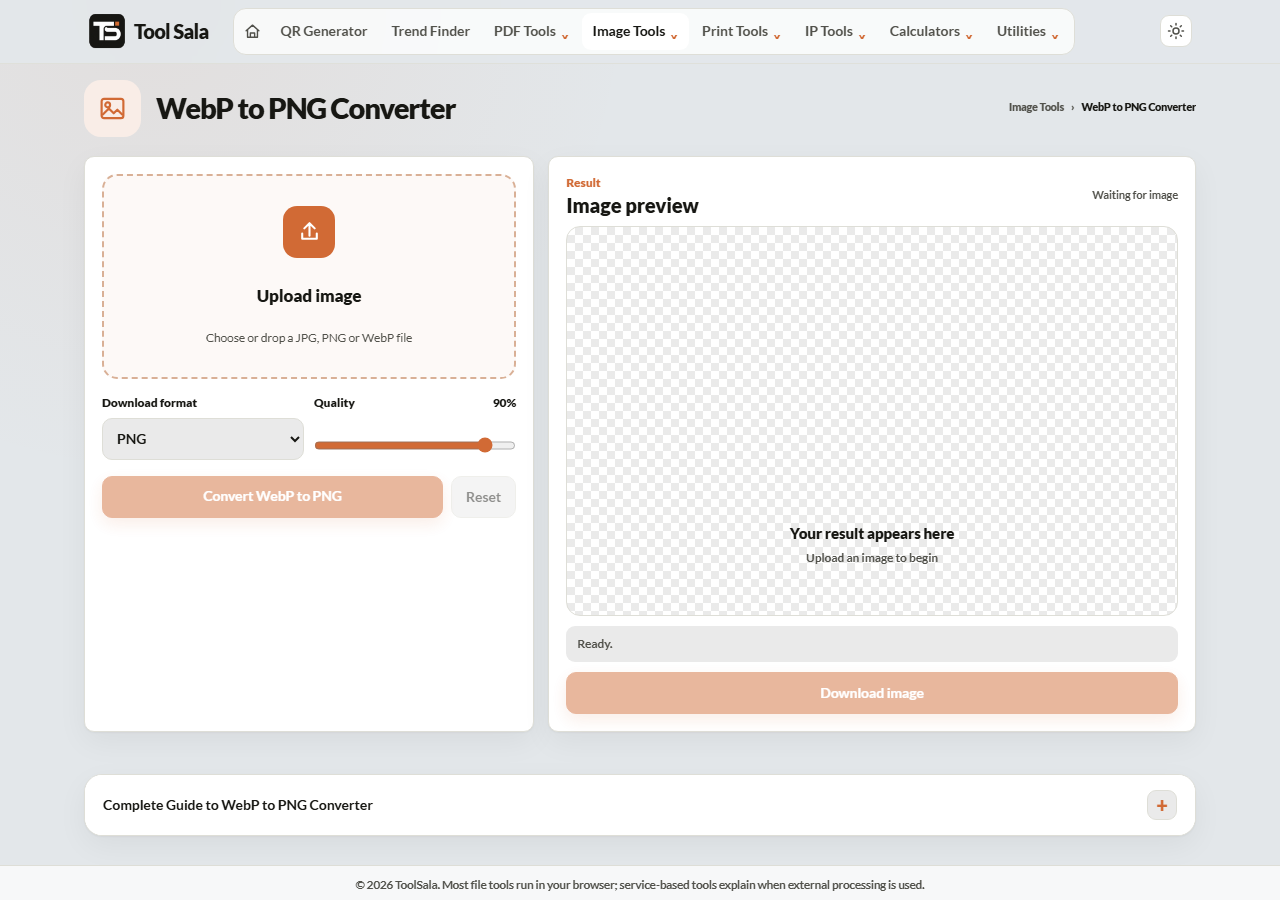
How to convert WebP to PNG
- Drop your WebP file onto the upload area, or click to choose it.
- Set Download format to PNG.
- Click Convert WebP to PNG and download the image.
PNG or JPG — which should you pick?
- Choose PNG when the image has transparency, or contains text, screenshots, logos or sharp lines that must stay crisp.
- Choose JPG when it is an ordinary photograph and you want a small file.
PNG is lossless: every pixel is stored exactly, nothing is thrown away. That is why it stays sharp — and why the file is larger.
Expect a bigger file
WebP is one of the most efficient formats there is, and PNG is one of the least. Converting will usually make the file several times larger — a 50 KB WebP can become a 400 KB PNG.
That is the cost of lossless and transparency. If the size becomes a problem, run the PNG through the image compressor, which reduces PNG size without touching the transparency.
WebP to PNG FAQs
Is this WebP to PNG converter free?
Yes. No signup, no watermark, and no limit on conversions.
Is my image uploaded to a server?
No. Everything happens inside your browser on your own device.
Does it keep the transparent background?
Yes. This is the main reason to choose PNG over JPG for this conversion.
Why is the PNG so much bigger than the WebP?
PNG is lossless and stores every pixel exactly, while WebP compresses far more aggressively. A several-times size increase is normal.
Is any quality lost?
Nothing is lost in the PNG step — PNG is lossless. The image can only be as good as the WebP it came from.
Can I make the PNG smaller?
Yes. Use the image compressor with the output format kept as PNG, so transparency survives.
Related online tools
- WebP to JPG — smaller file, but transparency becomes white.
- Image Compressor — shrink the PNG and keep transparency.
- Background Remover — create transparency in the first place.
- PNG to WebP — the reverse conversion.
- All image tools — the full list.