
About the Images to PDF tool
This free images to PDF tool turns photos into a single PDF document. Add your JPG or PNG files, pick the page size and orientation, and download one PDF with each image on its own page. Nothing is uploaded — it all happens in your browser.
The everyday use is scanning with a phone. You photograph four pages of a document, and the portal wants one PDF. This is the step in between.
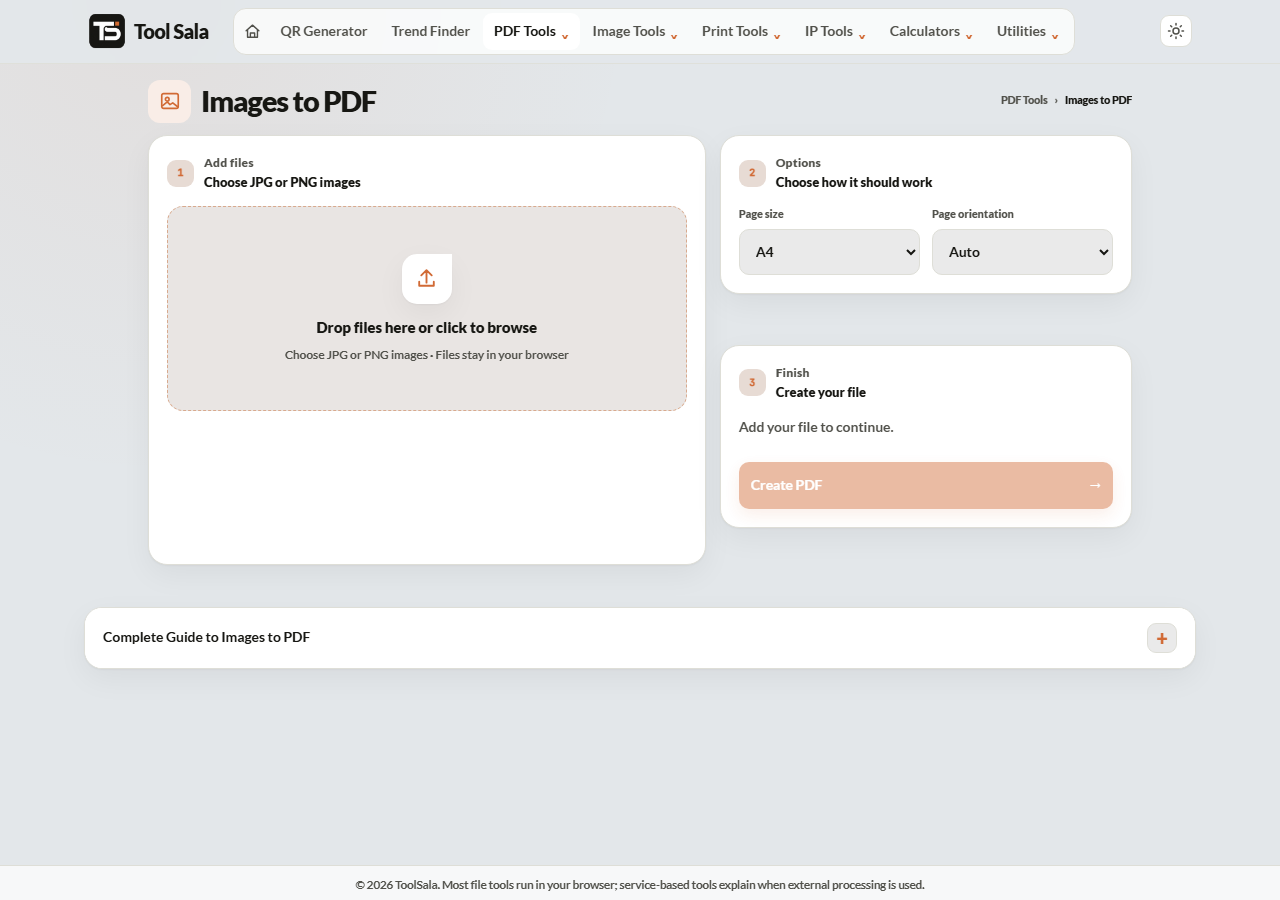
How to convert images to PDF
- Drop your JPG or PNG images onto the upload area, or click to browse. Add several at once.
- Check the order in the list — each image becomes a page in that order.
- Choose the Page size: A4 or US Letter.
- Choose the Page orientation: Auto, Portrait or Landscape.
- Click Create PDF and download the file.
Which orientation to choose
- Auto — each page follows its own image, so a landscape photo gets a landscape page. Best for a mixed set.
- Portrait — forces every page upright. Use this for scanned documents, certificates and forms.
- Landscape — forces every page wide. Use it for wide photos or spreadsheets.
For document scans, pick Portrait. Auto can produce a PDF that flips between orientations, which looks untidy and prints badly.
Getting clean document scans
- Shoot straight down on the page, not at an angle.
- Use even light and avoid your own shadow falling across the paper.
- Fill the frame with the page — crop out the table around it first.
- Name files so they sort correctly: page01, page02, page10 rather than 1, 2, 10.
Phone photos are large, so the finished PDF can easily run to 15 MB. Compress the images before creating the PDF, or compress the PDF afterwards.
Images to PDF FAQs
Is this images to PDF tool free?
Yes. No signup, no watermark on the output, and no limit on how many images you convert.
Are my photos uploaded anywhere?
No. The PDF is built inside your browser on your own device, which matters for ID and document scans.
Which image formats can I use?
JPG and PNG. Both work the same way and can be mixed in one document.
How do I control the page order?
The order in the file list becomes the page order. Rename your files with leading zeros before adding them so they sort correctly.
My PDF is too large. What can I do?
Run the photos through the image compressor first, or use Compress PDF on the finished file.
Can I put more than one image on a page?
No — each image gets its own page. For a card or photo layout on one sheet, use the print tools.
Related online tools
- Image Compressor — shrink the photos before building the PDF.
- Compress PDF — reduce the finished document.
- Merge PDF — join it with another PDF.
- PDF to JPG — go the other way.
- All PDF tools — the full list.