
About the QR Code Generator
This free QR code generator turns a link, Wi-Fi password, phone number or contact card into a scannable code you can download and print. Everything runs inside your browser — the code is drawn on your own device, nothing is uploaded, and there is no account, no watermark and no scan limit.
The QR codes you make here are static. The data is encoded directly into the pattern, so the code keeps working forever and does not depend on this website staying online. That also means the content cannot be edited after you download it — if the link changes, generate a new code.
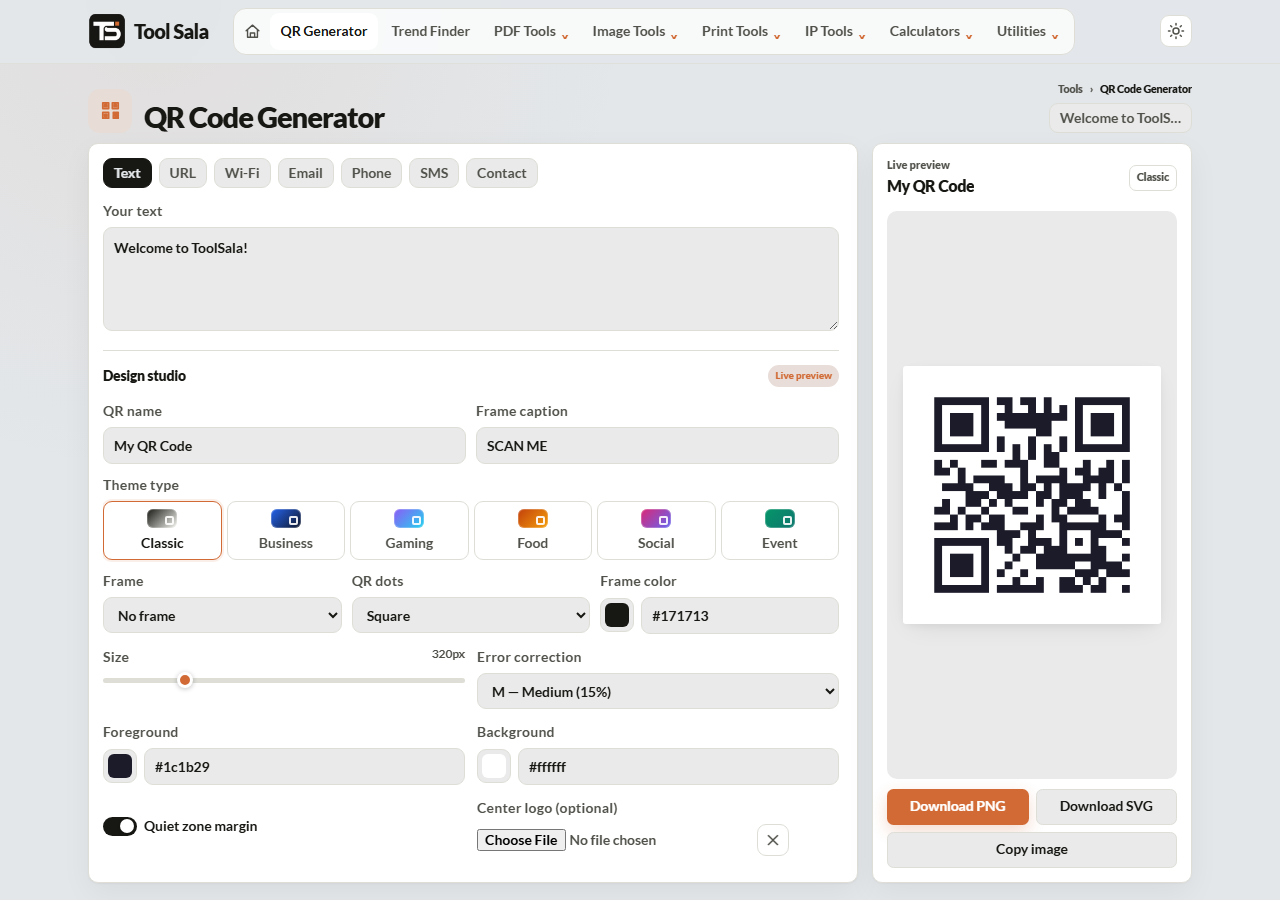
Seven types of QR code you can create
Pick a type first, because each one encodes its data differently:
- URL — opens a website when scanned. The most common use for menus, posters and packaging.
- Text — shows plain text on the phone. Good for serial numbers, instructions or short notes.
- Wi-Fi — joins a network automatically. Enter the SSID, password and security type (WPA/WPA2, WEP or open).
- Email — opens a new mail with your address and subject already filled in.
- Phone — starts a call to the number.
- SMS — opens a new message to your number.
- Contact (vCard) — saves name, phone, email, company and website straight into the phone’s contacts.
How to use the QR code generator
- Choose the type of QR code you need from the row of tabs.
- Fill in the fields for that type — a URL, a Wi-Fi password, or the contact details.
- Pick a template if you want a quick look: Classic, Business, Gaming, Food, Social or Event.
- Set the colours. You can change the foreground, background and accent colour separately.
- Choose a module style — Square for maximum compatibility, or Rounded and Dots for a softer look.
- Add a frame if the code needs a call to action: Clean border, Caption frame, Bold badge or Name card. Frames with a caption let you type your own text, like “Scan to pay” or “Scan for menu”.
- Upload a logo if you want your brand in the centre.
- Check the preview, then download as PNG for screens or SVG for print.
Adding a logo without breaking the code
A QR code carries spare data so it can still be read when part of it is damaged or covered. That spare capacity is the error correction level, and this tool gives you four:
- L — Low (7%) — smallest code, no room for a logo.
- M — Medium (15%) — the usual default for plain codes.
- Q — Quartile (25%) — safe for a small centre logo.
- H — High (30%) — use this whenever you add a logo, or when the code will be printed small.
The rule is simple: if you upload a logo, switch the error correction to H first. Then scan the preview with a real phone before you print anything.
PNG or SVG — which download to choose
Download PNG for anything that stays on a screen: WhatsApp, a slide, a website, a social post. Use the size slider to get the pixel size you need.
Download SVG for anything that gets printed: posters, flyers, stickers, packaging, table tents. SVG is vector, so the code stays perfectly sharp whether it is printed on a business card or a banner. If a printer asks for “vector artwork”, SVG is what they mean.
Printing QR codes that actually scan
- Keep the printed code at least 2 x 2 cm. Below that, phone cameras start to struggle.
- Leave the quiet zone on — that is the white margin around the code, and scanners need it.
- Keep good contrast. Dark code on a light background scans best; light-on-dark is unreliable on many phones.
- Do not stretch the code. It must stay square.
- Test with more than one phone before printing in bulk.
QR code generator FAQs
Is this QR code generator really free?
Yes. There is no account, no signup, no watermark and no limit on how many codes you create or download.
Do the QR codes expire?
No. These are static QR codes — the data lives inside the pattern itself, not on a server. The code will keep working even if this website disappears.
Can I edit a QR code after downloading it?
No. A static code cannot be changed once it is generated. If the link or details change, come back and generate a new code.
Is my data uploaded anywhere?
No. The code is generated in your browser, on your device. Your URL, Wi-Fi password and contact details are never sent to a server.
Why does my QR code not scan after adding a logo?
The logo is probably covering too much of the pattern. Set the error correction level to H — High (30%), keep the logo small and centred, and test again.
Which size should I use for printing?
Download the SVG for print. If you must use PNG, generate it at a large size and keep the printed code at least 2 x 2 cm.
Can I create a Wi-Fi QR code for guests?
Yes. Choose the Wi-Fi tab, enter your network name and password, pick the security type, and print the code for your reception, cafe or waiting area. Guests join by scanning, without typing the password.
Related online tools
- Google Review Link + QR Code Generator — collect Google reviews with a scannable card.
- Image Compressor — shrink the PNG before uploading it anywhere.
- Invoice Generator — add a payment QR code to a printed invoice.
- Photo Editor — place your QR code onto a poster or flyer.
- All online tools — the full ToolSala list.