
About the PDF to Word converter
This free PDF to Word converter turns a PDF into an editable document you can open in Microsoft Word, Google Docs or LibreOffice. Upload the file, click once, and download the result. The conversion runs in your browser, so the document is never sent to a server.
The usual reason people need it is simple: someone sent a PDF, and one line in it has to change — a date, a figure, a name — and nobody can find the original file any more.
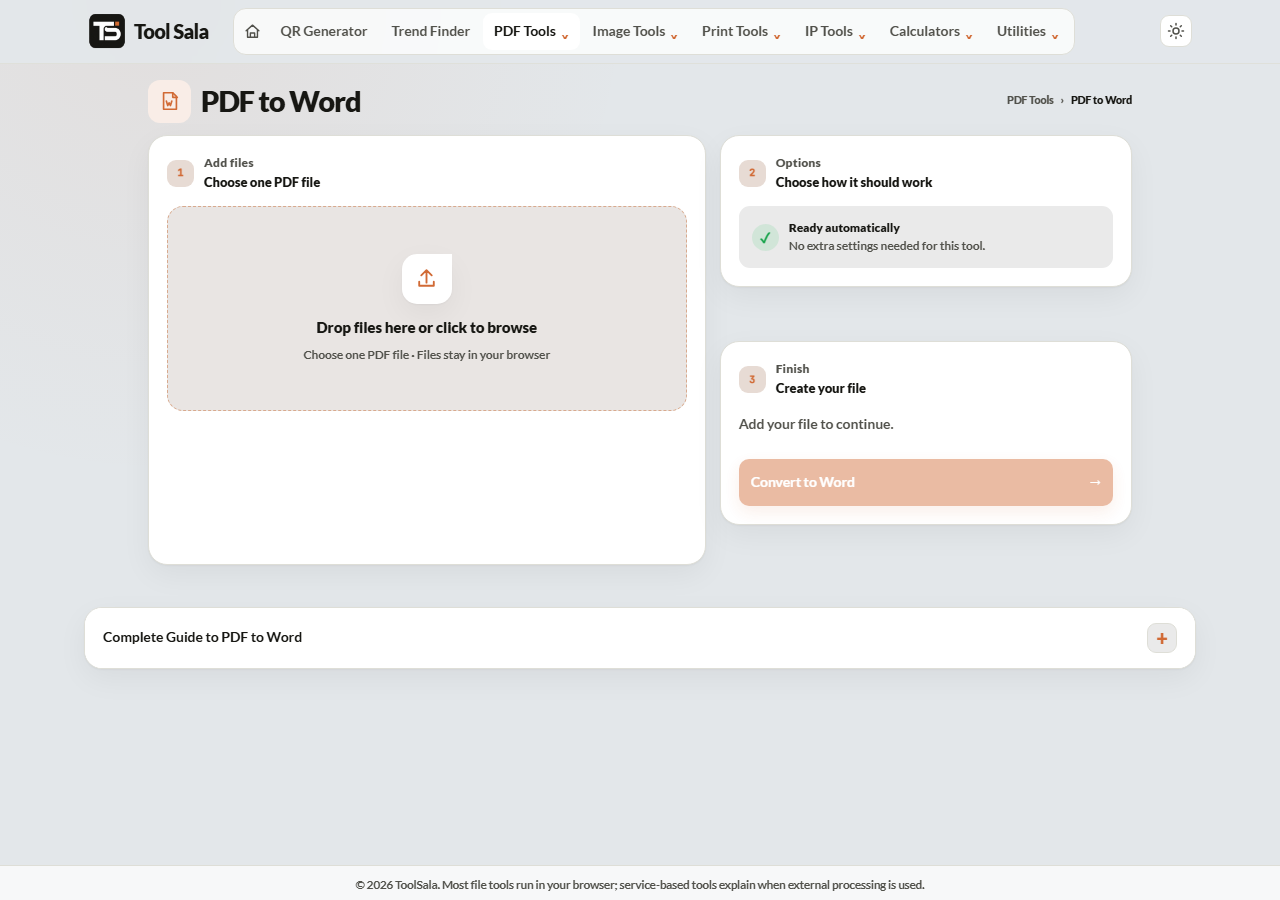
How to convert PDF to Word
- Drop your PDF onto the upload area, or click to browse.
- Click Convert to Word.
- Download the file and open it in Word, Google Docs or LibreOffice.
- Check the layout before you start editing — headings, spacing and tables are where problems show up.
What converts well, and what does not
PDF was designed to lock a layout in place, not to be edited. Converting reverses that, and the result depends heavily on the original:
- Text-based PDFs (exported from Word, Docs or a report tool) — convert well. Text comes across editable and mostly in the right place.
- Complex layouts — multi-column pages, heavy tables and text boxes usually need tidying afterwards.
- Scanned PDFs — a scan is a photograph of a page. There is no text inside it to extract, so you get an image, not editable words. That needs OCR, which is a different job.
Quick test: open the PDF and try selecting a line of text with your mouse. If it highlights, conversion will work. If nothing selects, it is a scan.
Fixing the usual layout problems
- Odd line breaks — turn on formatting marks in Word and delete the stray paragraph breaks.
- Fonts look different — the original font may not be installed on your computer. Pick a close substitute and apply it to the whole document.
- Tables misaligned — rebuilding a table is usually faster than repairing a broken one.
- Images shifted — set image wrapping to “In line with text” to keep them anchored.
PDF to Word FAQs
Is this PDF to Word converter free?
Yes. No signup, no watermark on the output, and no limit on conversions.
Is my PDF uploaded to a server?
No. The conversion happens in your browser on your own device, so contracts and statements stay private.
Will the formatting stay exactly the same?
Simple documents come across closely. Complex layouts with columns and tables usually need some cleanup. PDF stores positions, not document structure, so some rebuilding is normal.
Can I convert a scanned PDF?
Not into editable text. A scan contains a picture of the page with no text data inside it. Extracting words from a scan requires OCR.
Which formats can I open the result in?
Microsoft Word, Google Docs, LibreOffice Writer and WPS Office all open it.
Can I convert a password-protected PDF?
No. Remove the password in a PDF reader first, then convert.
How do I go back to PDF after editing?
Use the Word to PDF tool once your edits are done.
Related online tools
- Word to PDF — convert back once you have finished editing.
- Split PDF — convert only the pages you actually need.
- Compress PDF — shrink the file before or after converting.
- PDF to JPG — get page images instead of text.
- All PDF tools — the full list.