
About the Watermark PDF tool
This free tool adds a watermark to a PDF — either text like “DRAFT” or “CONFIDENTIAL”, or your own logo image. You control the size, position, rotation, opacity and which pages it lands on. Everything runs in your browser, so the document is never uploaded.
A watermark does two jobs: it tells anyone holding a copy what its status is, and it makes a leaked document traceable. Both matter more on documents you send outside your organisation.
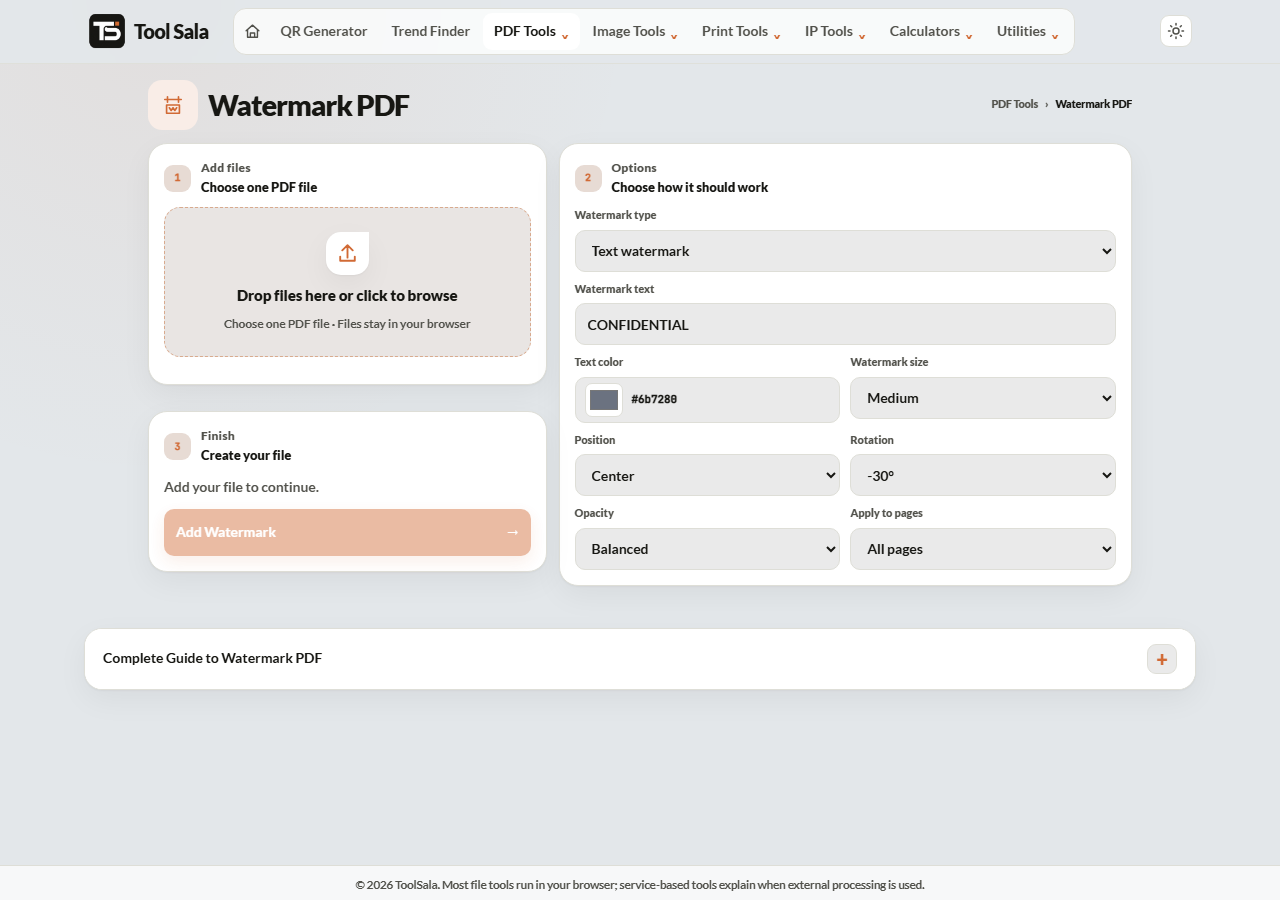
How to watermark a PDF
- Drop your PDF onto the upload area.
- Choose the Watermark type — Text watermark or Logo or image.
- For text, type your wording and pick a text colour. For a logo, upload a transparent PNG or a JPG.
- Set Size (Small, Medium, Large), Position, Rotation and Opacity.
- Choose which pages under Apply to, then click Add Watermark.
Position and rotation
There are eight placements: Center, the four corners, top centre, bottom centre, and Repeat / tile which covers the whole page with a repeating mark.
- Center with -45° rotation — the classic diagonal “DRAFT” across the page.
- Bottom centre, no rotation — discreet, good for a company name on a proposal.
- Corner — least intrusive, keeps the text fully readable.
- Repeat / tile — hardest to crop out. Use it when copying is the real concern.
Choosing the opacity
- Very light — visible but the text underneath stays perfectly readable.
- Balanced — the usual choice for internal drafts.
- Strong and Very strong — clearly dominant. Use when you want to discourage reuse, accepting that the page gets harder to read.
Start at Balanced. Anything heavier on a document someone actually has to read will annoy them.
Page selection
You can apply the watermark to All pages, First page only, Odd, Even, or Custom pages. First page only suits a cover marked “CONFIDENTIAL”; all pages suits a draft that must not be mistaken for final.
Watermark PDF FAQs
Is this watermark tool free?
Yes. No signup, and the tool adds no watermark of its own — only the one you set.
Is my PDF uploaded to a server?
No. The watermark is applied in your browser on your own device.
Can I use my company logo?
Yes. Choose Logo or image and upload a PNG or JPG. A transparent PNG looks best because the page shows through around it.
Can the watermark be removed later?
Not easily, and not by ordinary readers — it becomes part of the page content. Keep an unwatermarked original for yourself.
Will it cover my text?
Only if you make it heavy. Use Very light or Balanced opacity, or place it in a corner.
Can I watermark only the first page?
Yes. Choose First page only under Apply to.
Related online tools
- Merge PDF — combine documents before watermarking them together.
- Compress PDF — shrink the watermarked file.
- Rotate PDF — straighten pages first.
- Background Remover — make your logo transparent before using it.
- All PDF tools — the full list.