
About the Rotate PDF tool
This free tool lets you rotate PDF pages and save the new orientation permanently. Upload the file, choose the angle, pick which pages to apply it to, and download the corrected PDF. Everything runs in your browser.
The usual cause is a scanner or a phone that captured pages sideways. Turning your head works while reading, but a form reviewer will not, and printing a sideways page wastes paper.
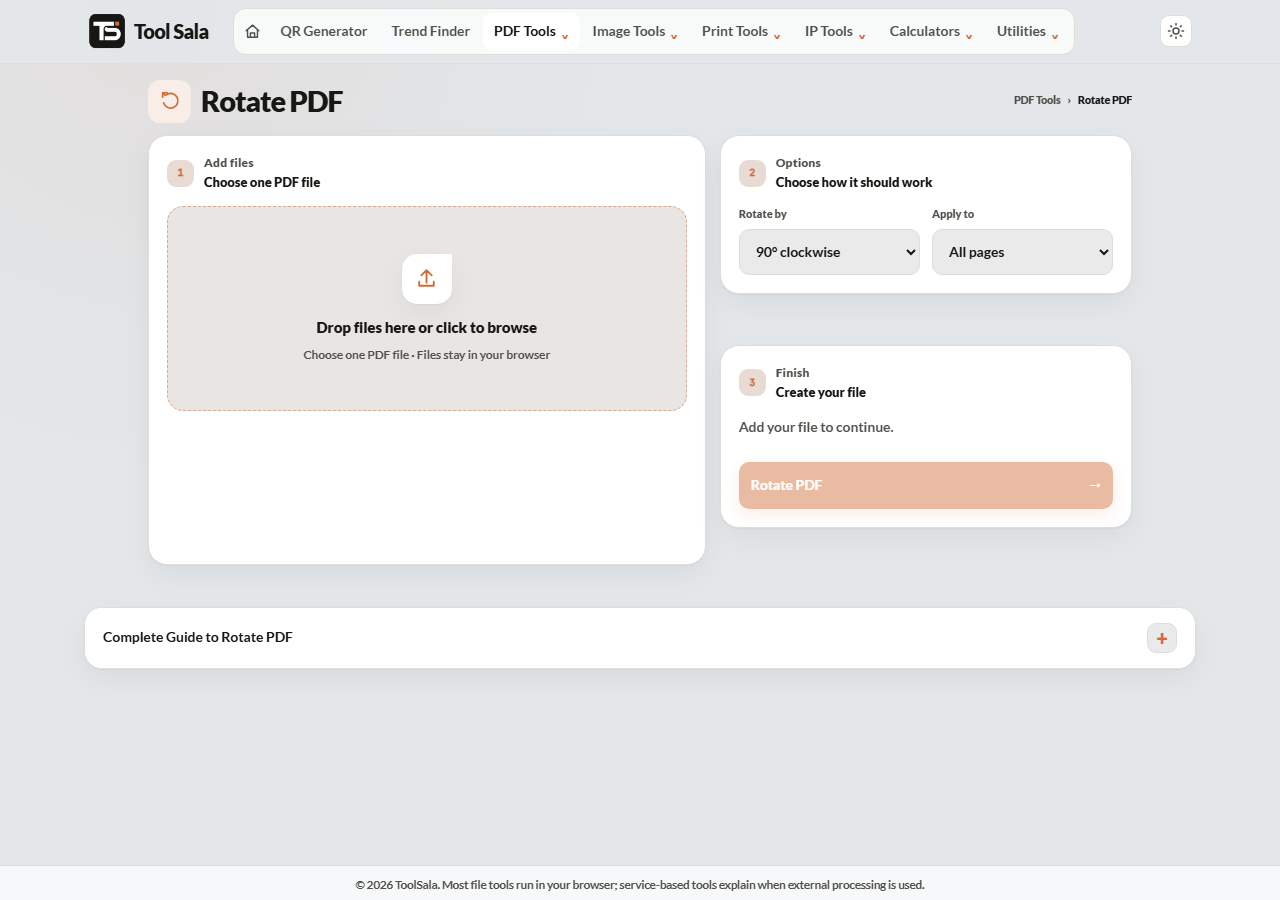
How to rotate a PDF
- Drop your PDF onto the upload area, or click to browse.
- Choose Rotate by: 90° clockwise, 180° or 270° clockwise.
- Choose Apply to: All pages, Odd pages or Even pages.
- Click Rotate PDF and download the result.
Picking the right angle
- 90° clockwise — the page currently lies with its top on the left.
- 270° clockwise — the page has its top on the right. Same as 90° anticlockwise.
- 180° — the page is upside down, which happens when a sheet goes into the scanner the wrong way round.
If you are unsure between 90° and 270°, try one and look at the result. Rotating again by the other angle brings it back.
Why odd and even pages matter
This is the setting that saves the most time. When you scan a double-sided document and every second sheet was fed in flipped, only the even pages are upside down. Choose 180° and apply it to Even pages, and the whole document is fixed in one pass instead of page by page.
Rotate PDF FAQs
Is this rotate PDF tool free?
Yes. No signup, no watermark, and no limit on how many files you rotate.
Is my PDF uploaded to a server?
No. The rotation happens inside your browser on your own device.
Is the rotation saved permanently?
Yes. Rotating in a PDF reader is often only a temporary view that resets when the file reopens. This writes the new orientation into the downloaded file.
Can I rotate only one page?
Use the odd or even option if that matches. For a single specific page, split the PDF, rotate that page, then merge it back.
Will rotating reduce the quality?
No. Only the orientation flag changes. Text stays selectable and images keep their resolution.
Can I rotate a password-protected PDF?
No. Remove the password in a PDF reader first, then rotate.
Related online tools
- Split PDF — isolate a single page to rotate.
- Merge PDF — put the corrected pages back together.
- Compress PDF — shrink the file afterwards.
- Watermark PDF — mark the document once it is the right way up.
- All PDF tools — the full list.