
About the JPG to PNG converter
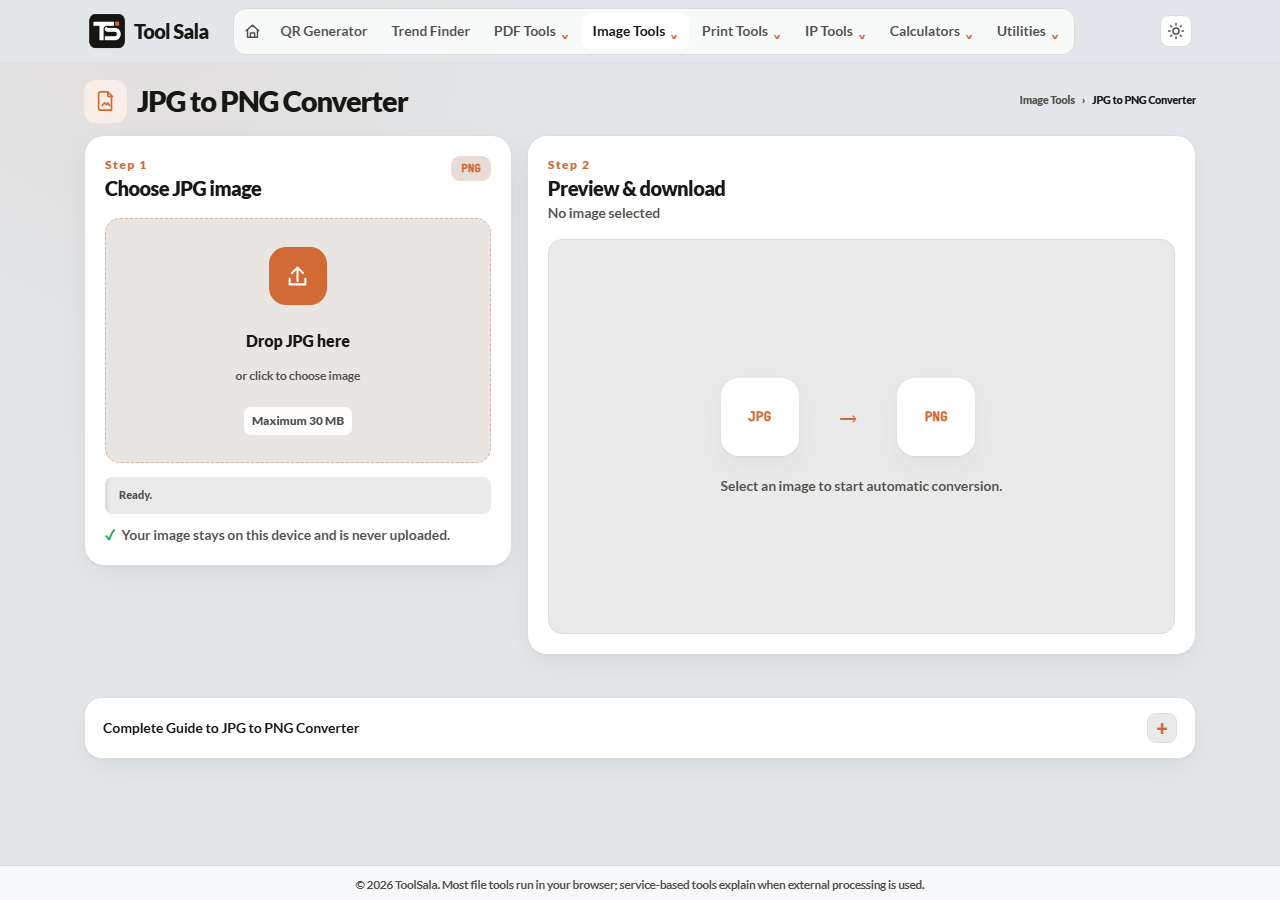
This free JPG to PNG converter turns a JPG photo into a lossless PNG. Drop the file in — up to 30 MB — and download the PNG. The conversion runs in your browser, so the image never leaves your device.
Converting to PNG will not improve a JPG that is already blurry. What it does is stop any further loss, which matters when the image is about to be edited, cropped or re-saved several times.
How to convert JPG to PNG
- Drop your JPG onto the upload box, or click to choose a file.
- Wait a moment while it converts.
- Download the PNG.
When converting to PNG is worth it
- Before editing. Every time a JPG is saved it loses a little more quality. Edit in PNG and that stops.
- Before removing a background. You need PNG to hold the transparency afterwards.
- Screenshots and text images. JPG smudges sharp edges and small text; PNG keeps them clean.
- A portal demands PNG. Some upload forms simply insist on it.
When to stay with JPG
For an ordinary photograph you are just going to share or upload, JPG is the better choice. The PNG will be several times larger with no visible improvement, because the detail JPG discarded is already gone and PNG cannot bring it back.
Think of it this way: PNG protects quality going forward, it does not restore quality already lost.
JPG to PNG FAQs
Is this JPG to PNG converter free?
Yes. No signup, no watermark, and no limit on conversions.
Is my photo uploaded to a server?
No. The conversion happens in your browser on your own device.
Will converting improve the image quality?
No. PNG stores exactly what is in the JPG. Detail lost during JPG compression cannot be recovered by any converter.
Why is the PNG so much larger?
PNG is lossless, so it stores every pixel in full. Three to five times the size is normal for a photograph.
Will my JPG get a transparent background?
No. PNG supports transparency, but a JPG has none to carry over. Use the background remover to create it.
What is the largest file I can convert?
Up to 30 MB, which covers photos from any phone or camera.
Related online tools
- Background Remover — make the background transparent after converting.
- PNG to JPG — the reverse conversion.
- Image Compressor — shrink the PNG if it is too large.
- Photo Editor — crop and adjust the image.
- All image tools — the full list.